
Booking a seat for an existing student is quick and simple. If the student is already registered in your library, you only need to select their details and assign a new booking.
Steps to Book a Seat
Step 1: Open the Students Page
- Navigate to Students from the left sidebar.
- Locate the student you want to book a seat for.
- Click the Book Seat button next to the student's name.
Step 2: Verify Student Information
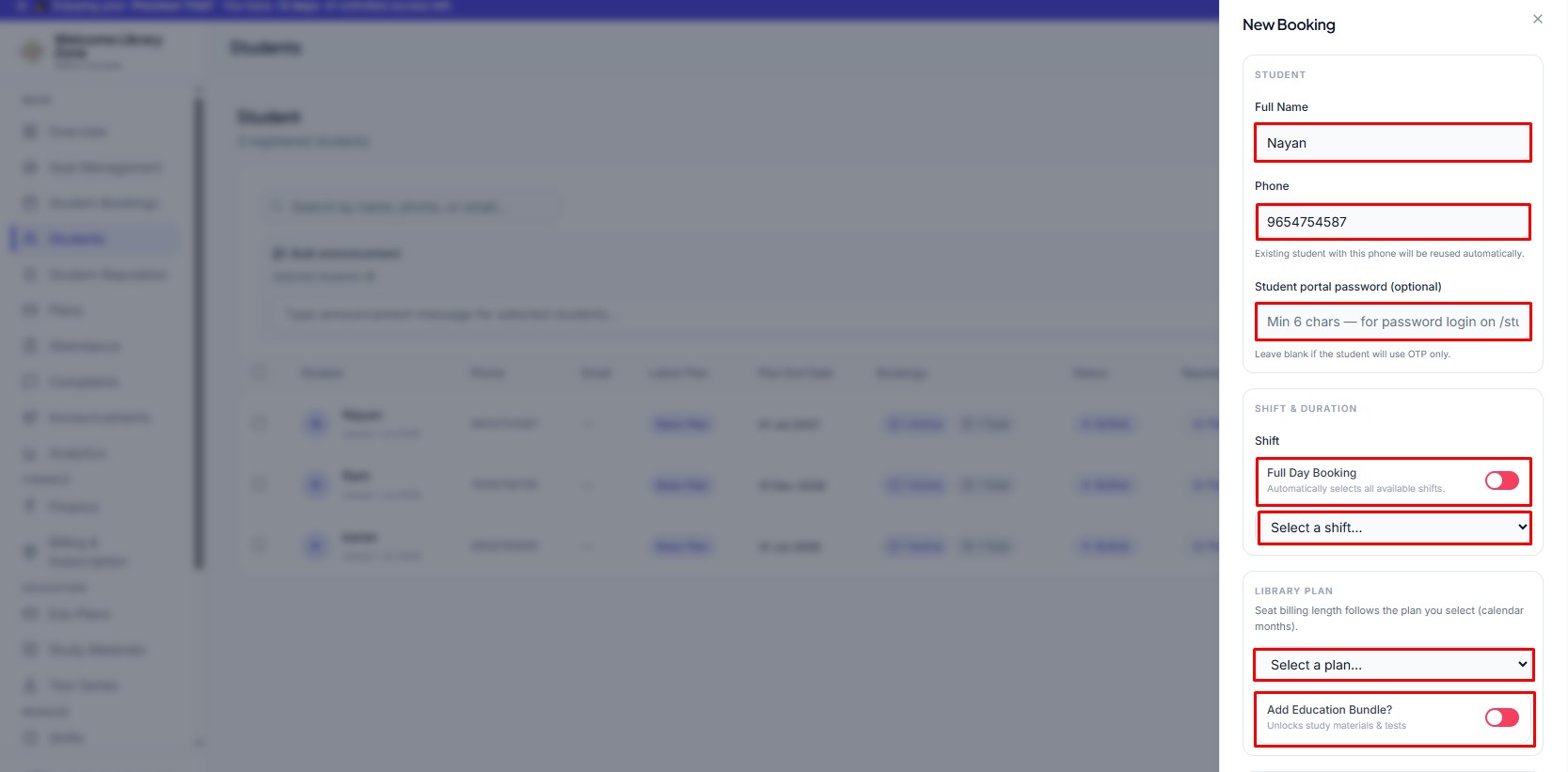
- The student's information (Name and Phone Number) will automatically be filled in.
- You can also:-
- Set or update the Student Portal Password (optional).
- Leave the password blank if the student will log in using OTP.
Step 3: Select Shift
- Choose how the student will use the library.
- Options include:-
- Full Day Booking – Automatically includes all available shifts.
- Single Shift – Select a specific shift such as Morning or Evening.
Step 4: Select a Library Plan
- Choose the subscription plan for the student.
- If your library provides educational content, you can also enable the Education Bundle.
Step 5: Choose an Available Seat
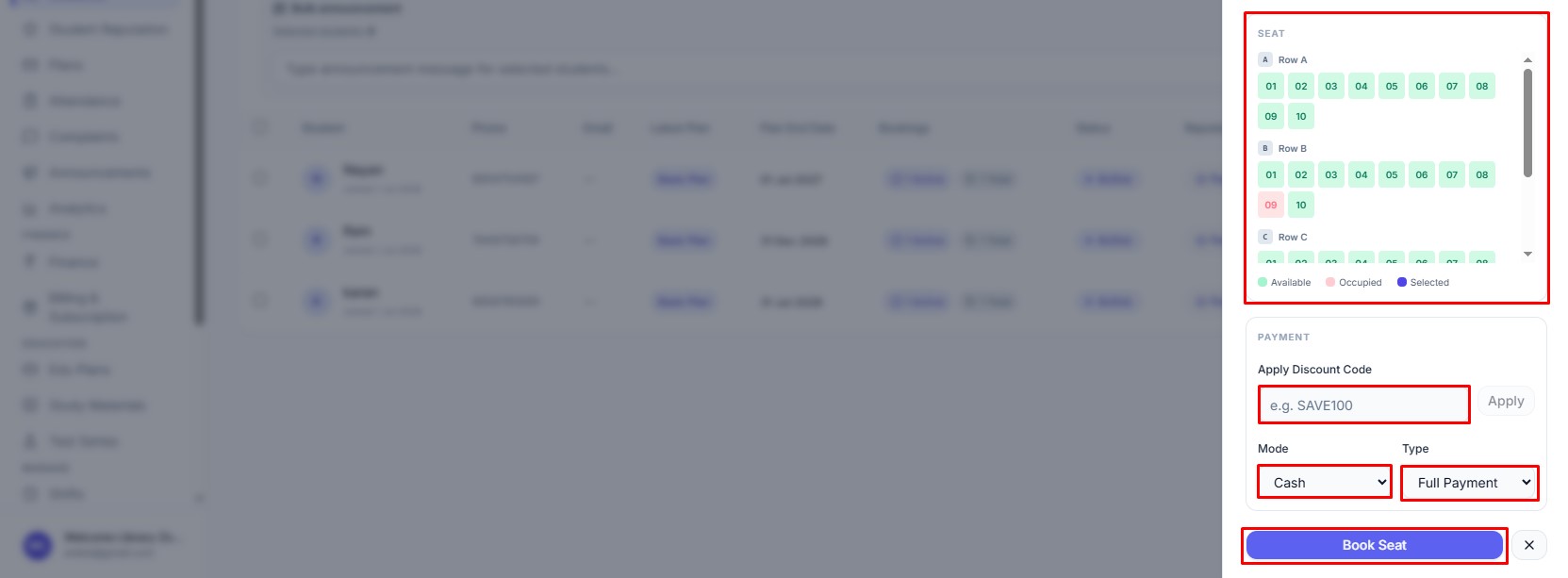
- After selecting the shift, the seat layout will appear.
- Seat colors indicate availability:-
? Green – Available
? Red – Occupied
? Purple – Selected
- Simply click an available seat to assign it to the student.
Step 6: Payment Details
- Complete the payment section before confirming the booking.
- You can:
- Apply a Discount Code (if available).
- Select the Payment Mode (Cash, Online, UPI ).
- Choose the Payment Type ( Full and Partial ).
Step 7: Confirm the Booking
- After reviewing all details, click the Book Seat button.
- The booking will be created immediately, and the student will be assigned the selected seat and plan.
Step to Edit a Student
Step 8: Edit a student's information
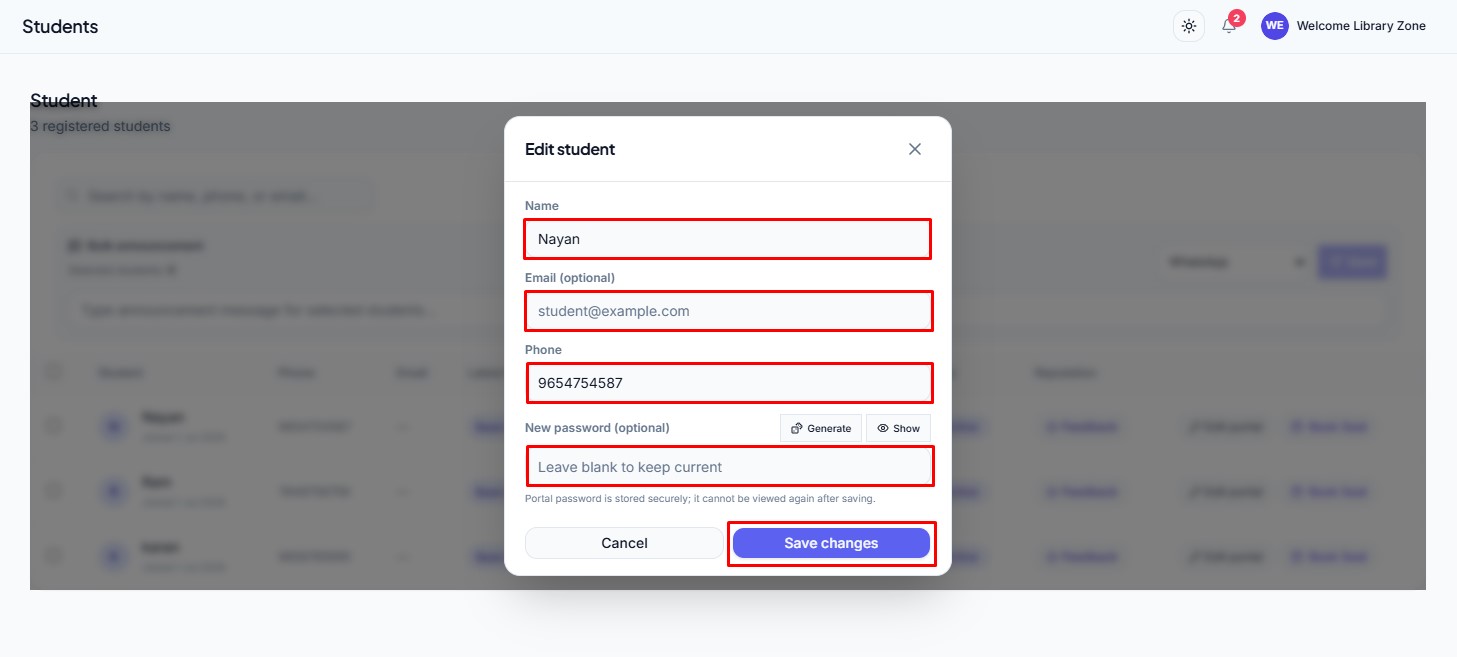
- Click Edit Portal beside the student's name.
- Update the students:-
- Name
- Email Address (optional)
- Phone Number
- Portal Password (optional)
- Click Save Changes.
- The student's profile will be updated instantly.
Step to a Feedback
Step 9: Submit feedback about a student
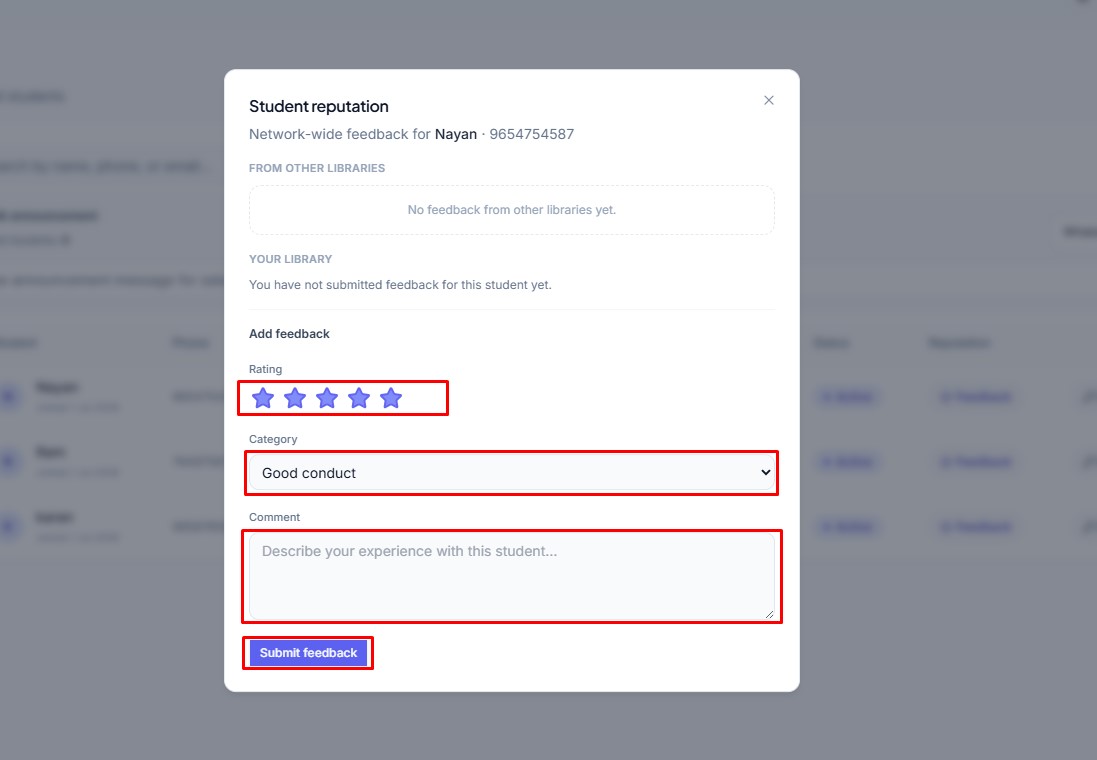
- The Student Reputation feature helps maintain discipline and share feedback.
- Steps:-
- Click the Feedback button beside the student.
- Select a Star Rating.
- Choose a Feedback Category.
- Write your comments.
- Click Submit Feedback.
Your feedback is stored securely and helps maintain the student's reputation within the system.