
Follow these simple steps to block visitors from specific states using the app.
Step 1: Open the State Blocking Section
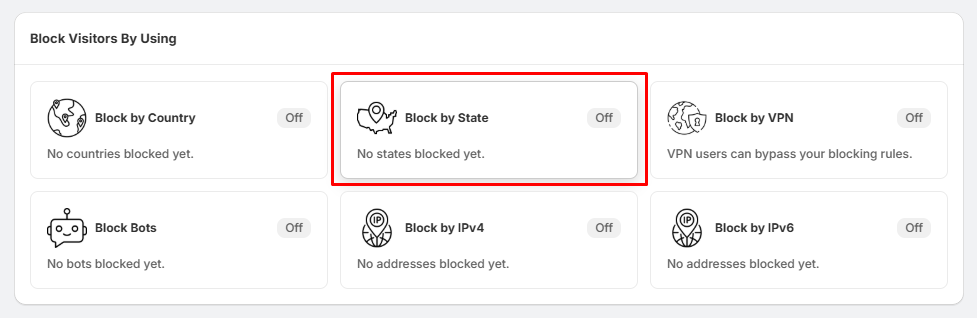
- Go to Block Settings.
- Find the Block States card.
- Click Manage States.
This will open the State Blocking page.
Step 2: Create a New State Rule
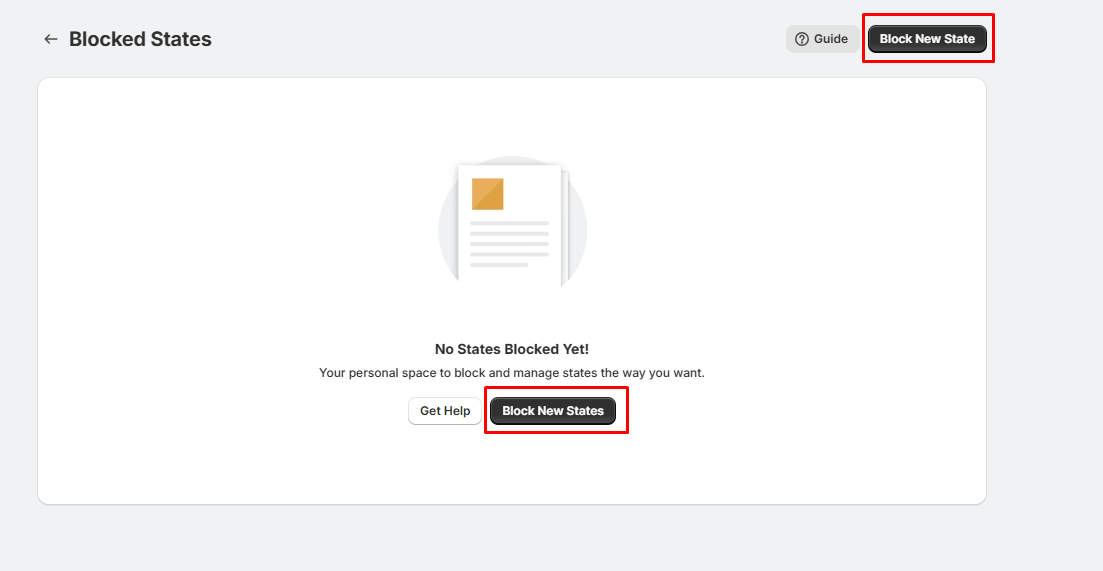
- Click Block New State.
- If you haven't created any rules yet, you can also click the Block New States button in the center of the page.
Step 3: Select the Country
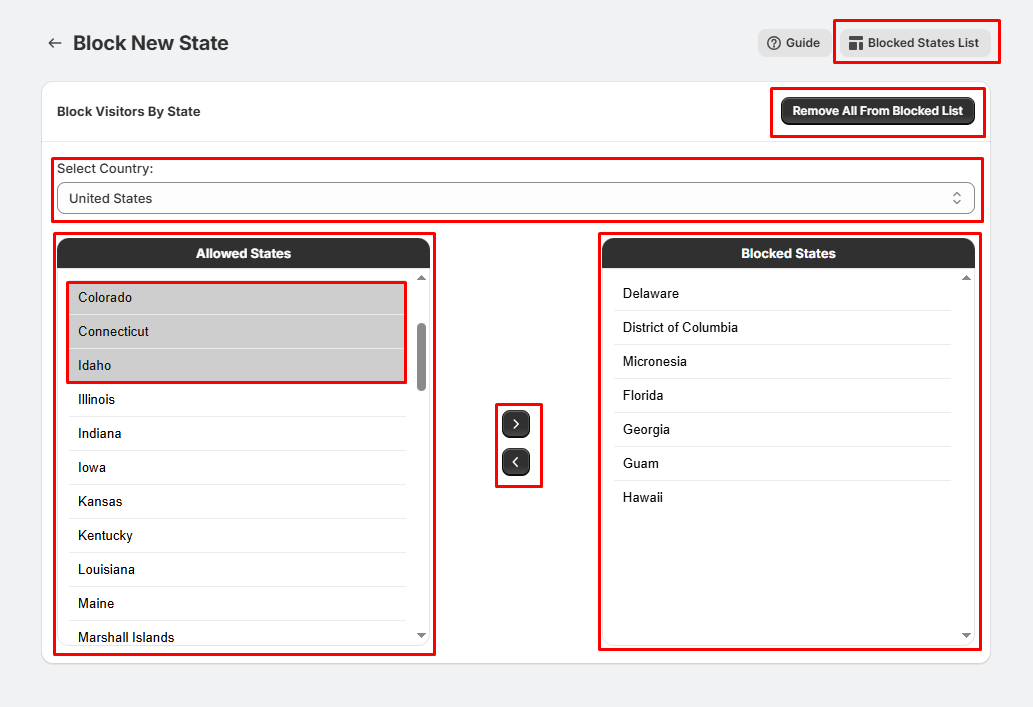
- From the Select Country dropdown, choose the country whose states you want to block.
- Example: United States
- The list of available states will appear on the left.
Step 4: Block the Required States
- In the Allowed States list, select one or more states you want to block.
- Click the ▶ (Right Arrow) button.
- The selected states will move to the Blocked States list.
- You can select multiple states at once using Ctrl (Windows) or Cmd (Mac) while clicking.
Step 5: Remove Blocked States
If you want to unblock a state:
- Select the state from the Blocked States list.
- Click the ◀ (Left Arrow) button.
- The state will be moved back to the Allowed States list.
Step 6: Remove All Blocked States
To clear your entire blocked list:
- Click Remove All From Blocked List.
- All blocked states will be moved back to the allowed list.
Step 7: View Your Blocked States(optional)
At any time, click Blocked States List to view and manage all of your blocked states.
Done!
- Once you've moved the desired states to the Blocked States list, visitors from those states will be restricted from accessing your store according to your app settings.
Tips:
- You can create separate state-blocking rules for different countries.
- Double-check that you've selected the correct country before blocking states.
- Test your rule using a VPN or a location testing tool to confirm it's working as expected.