
Follow these simple steps to block unwanted bots from accessing your store.
Step 1: Open the Bot Blocking Section
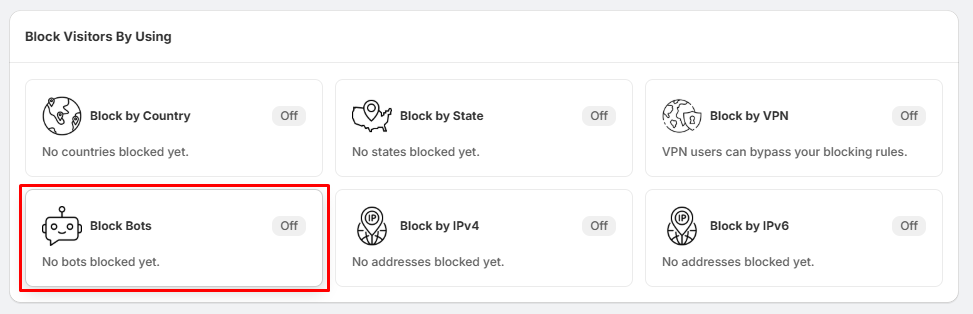
- Go to Block Settings.
- Locate the Block Bots section.
- Click Manage Bots.
This will open the Blocked Bots page.
Step 2: Add a New Bot
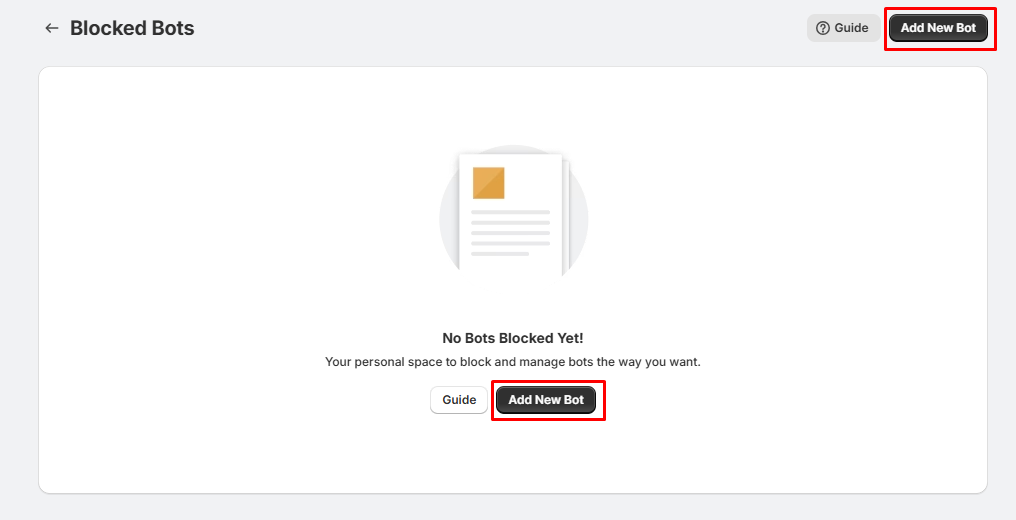
- Click Add New Bot.
- You can click the button in the top-right corner, or
- Click the Add New Bot button displayed in the center of the page.
Step 3: Enter the Bot Details
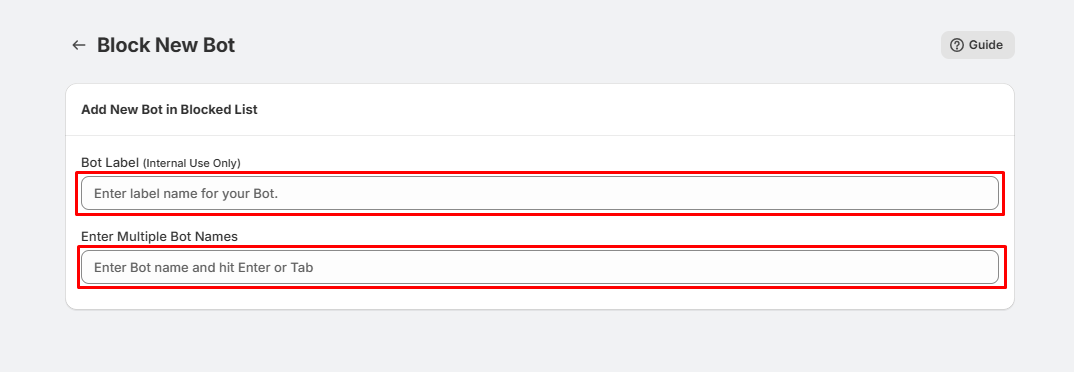
On the Block New Bot page:
- Bot Label (Internal Use Only)
- Enter a descriptive name for the bot rule.
- This label is only for your reference and is not visible to visitors.
Example:
- Google Test Bot
- SEO Bot
- Custom Crawler
- Spam Bot
Enter one or more bot names that you want to block.
- Type a bot name.
- Press Enter or Tab to add it.
- Repeat the process to add multiple bot names.
Example:
- AhrefsBot
- SemrushBot
- MJ12bot
- DotBot
Each bot name will be added as a separate entry.
Step 4: Save the Bot Rule
- After entering the bot label and bot names, click Save to add the bots to your blocked list.
- Once saved, visitors using the specified bot user agents will be blocked from accessing your store.
Tips
- Use a meaningful Bot Label to easily identify your rules later.
- You can add multiple bot names in a single rule.
- Press Enter or Tab after each bot name to add it.
- Only enter the bot name (User-Agent), not the full User-Agent string.
- You can edit or remove bot rules at any time from the Blocked Bots page.