
Follow these simple steps to block one or more IPv4 addresses from accessing your store.
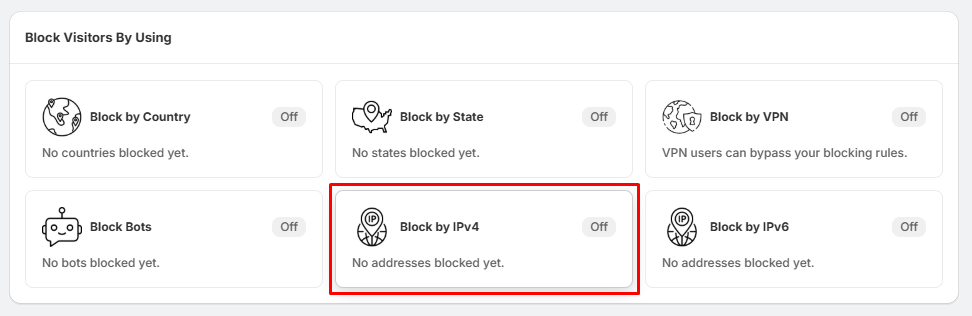
Step 1: Open the IPv4 Blocking Section
- Go to Block Settings.
- Locate the Block IPv4 section.
- Click Manage Addresses.
This will open the Blocked IPv4 IPs page.
Step 2: Add a New IPv4 Address
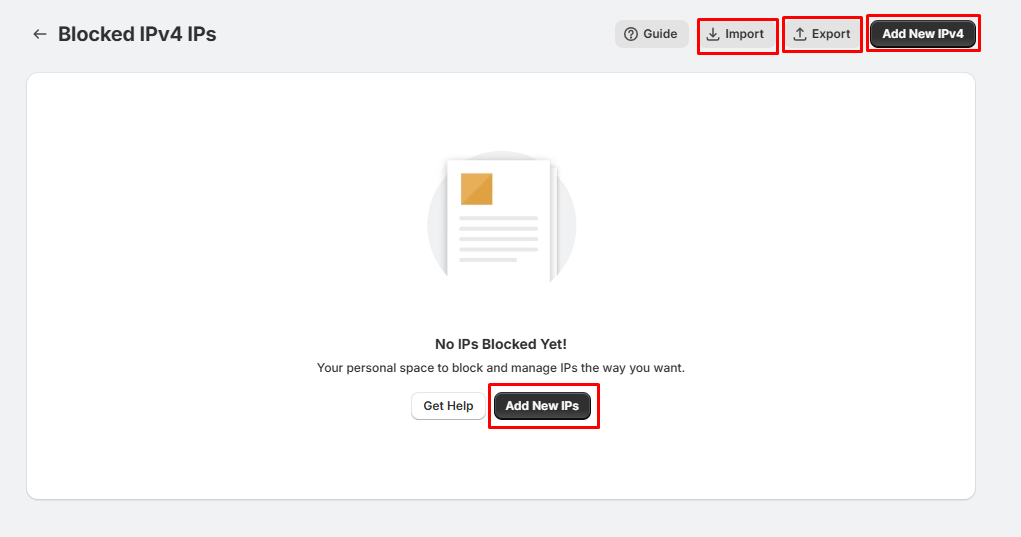
On the Blocked IPv4 IPs page, you can add a new IP address in either of these ways:
- Click Add New IPv4 in the top-right corner.
- Or click the Add New IPs button in the center of the page.
Step 3: Enter the IP Address
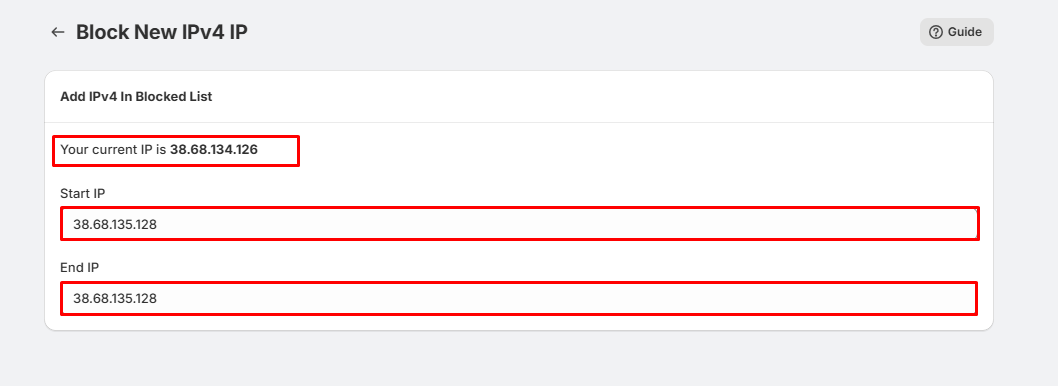
On the Block New IPv4 IP page:
- Your current public IPv4 address is displayed at the top for reference.
- Example: Your current IP is 38.68.134.126
- To block a single IP address, enter the same IP in both the Start IP and End IP fields.
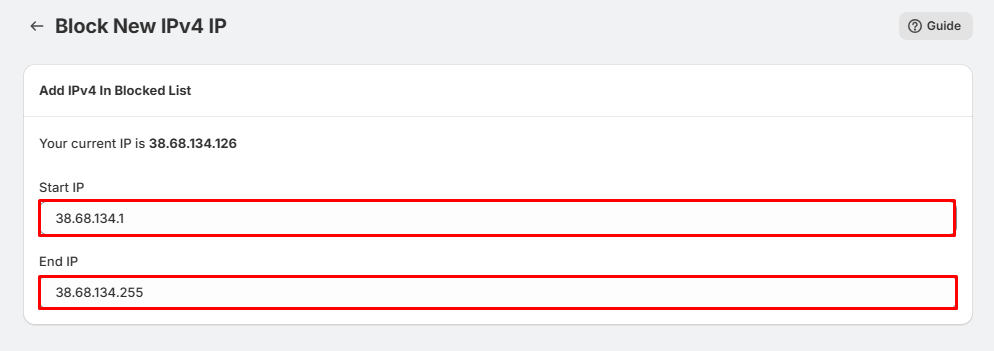
- To block a range of IP addresses, enter the first IP in Start IP and the last IP in End IP.
Single IP Example:
- Start IP : 38.68.135.128
- End IP : 38.68.135.128
IP Range Example:
- Start IP : 38.68.135.1
- End IP : 38.68.135.255
Step 4: Save the Rule
- After entering the IP address or IP range, click Save to add it to your blocked list.
- The specified IP address(es) will now be prevented from accessing your store.
Import IPv4 Addresses
To add multiple IP addresses at once:
- Click Import.
- Upload your supported file containing IPv4 addresses.
- Complete the import process.
This is useful when blocking a large list of IP addresses.
Export IPv4 Addresses
To download your existing blocked IPv4 list:
- Click Export.
- A file containing all blocked IPv4 addresses will be downloaded.
This can be used for backup or migration purposes.
Tips:
- Use the same IP in both fields to block a single address.
- Use Start IP and End IP to block an entire IP range.
- Verify the IP address before saving to avoid blocking legitimate visitors.
- Use the Import feature when adding a large number of IP addresses.
- Regularly Export your blocked IP list to keep a backup of your settings.