
Follow these simple steps to block an IPv6 address from accessing your store.
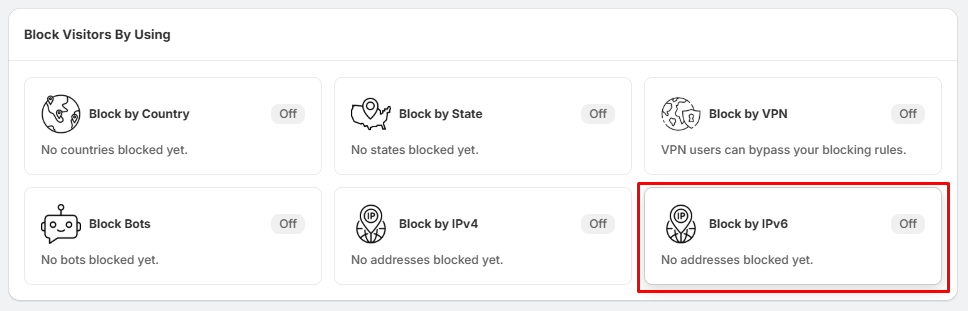
Step 1: Open the IPv6 Blocking Section
- Go to Block Settings.
- Locate the Block IPv6 section.
- Click Manage Addresses.
This will open the Blocked IPv6 IPs page.
Step 2: Add a New IPv6 Address
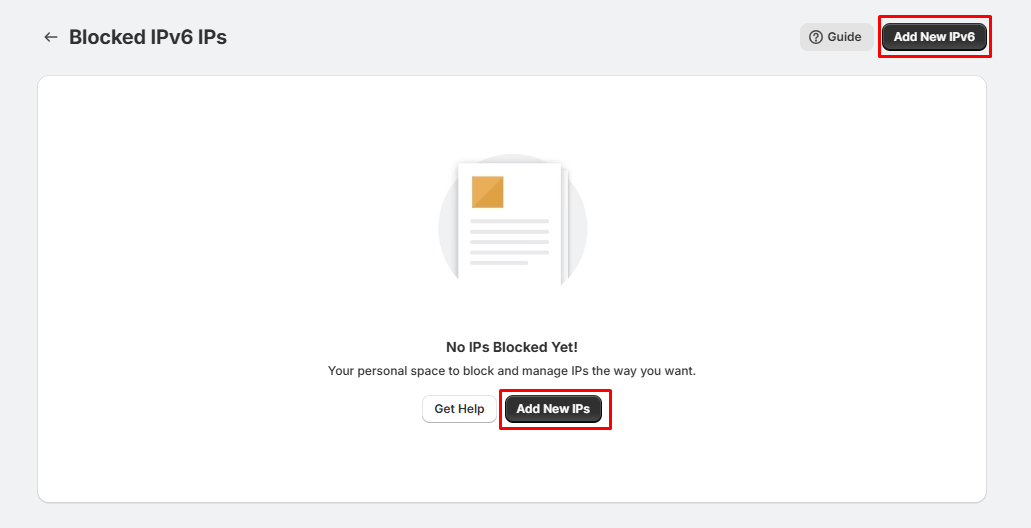
On the Blocked IPv6 IPs page, you can add a new IPv6 address in either of these ways:
- Click Add New IPv6 in the top-right corner.
- Or click the Add New IPs button displayed in the center of the page.
Step 3: Enter the IPv6 Address
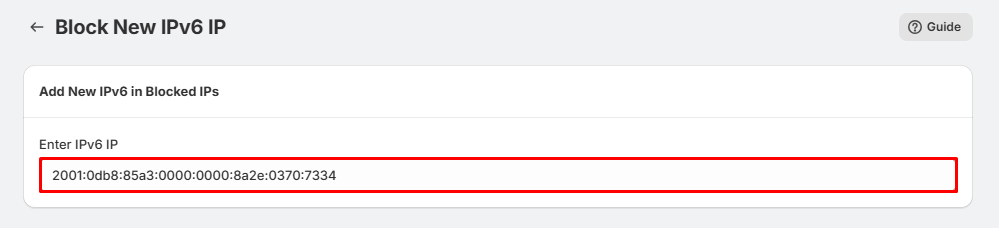
On the Block New IPv6 IP page:
- Type the complete IPv6 address that you want to block.
- Example: 2001:0db8:85a3:0000:0000:8a2e:0370:7334
- Make sure the IPv6 address is entered in the correct format before saving.
Step 4: Save the Rule
- After entering the IPv6 address, click Save.
- The IPv6 address will be added to your blocked list, and visitors using that address will no longer be able to access your store.
Tips:
- Enter the complete IPv6 address in the correct format.
- Double-check the address before saving to avoid blocking legitimate visitors.
- If you need to block multiple IPv6 addresses, repeat the process for each address.
- You can remove blocked IPv6 addresses at any time from the Blocked IPv6 IPs page.
- Test the rule after saving to ensure the IPv6 address is being blocked as expected.