
Follow these simple steps to create a rule that blocks products based on a visitor's location.
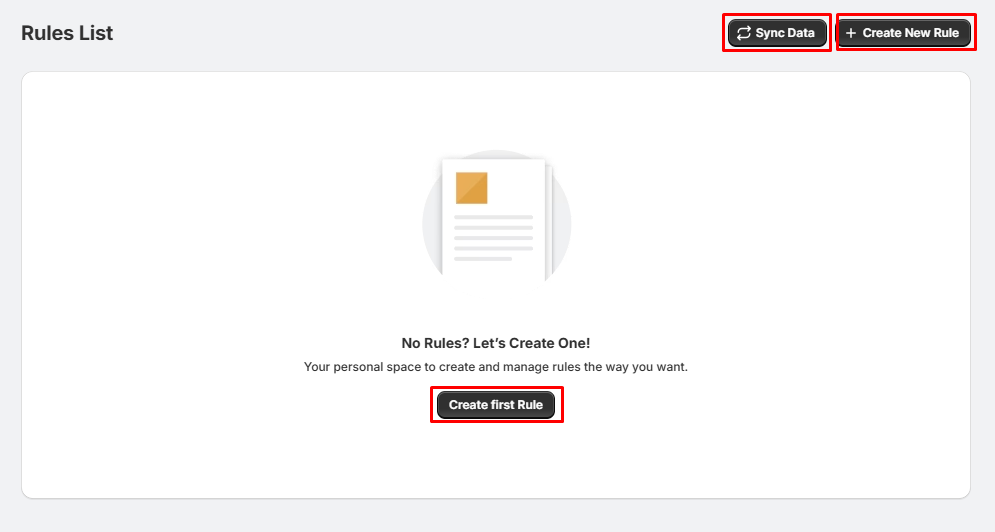
Step 1: Open the Rules Page
- Navigate to Rules from the left menu.
- Click Create New Rule in the top-right corner.
Tip: If your products or collections are not showing, click Sync Data first to refresh your store data.
Step 2: Configure the Rule
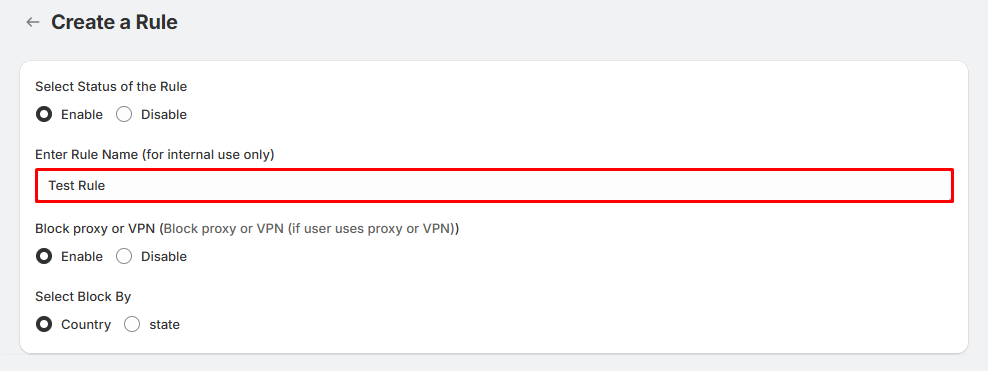
On the Create a Rule page, configure the following settings:
1. Choose whether the rule should be active.
- Enable – Activates the rule immediately.
- Disable – Saves the rule without applying it.
2. Enter a name for your rule.
- Example: US Product Block
- This name is for internal use only.
3. Block Proxy or VPN (Optional)
Choose whether visitors using a VPN or proxy should also be blocked.
- Enable – Block visitors using VPNs or proxy services.
- Disable – Ignore VPN detection.
4. Select Block By
Choose how you want to block visitors:
- Country – Block visitors from selected countries.
- State – Block visitors from selected states or provinces.
Step 3: Select the Location
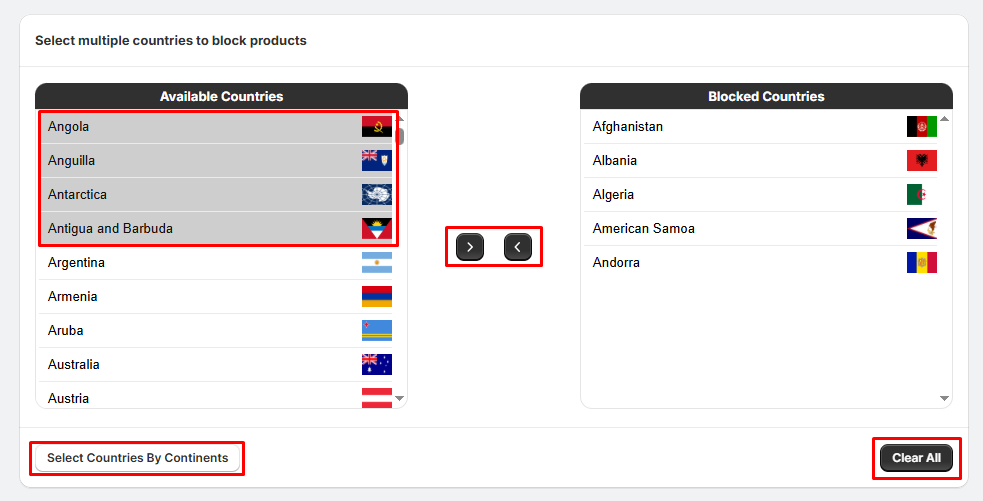
If you selected Country
- Select one or more countries from the Available Countries list.
- Click the ➡ button to move them to Blocked Countries.
- To remove countries, select them in the Blocked Countries list and click the ⬅ button.
- Optional: Click Select Countries by Continents to block all countries within a specific continent.
If you selected State
- Select a country.
- Choose one or more states or provinces from the Available States list.
- Click the ➡ button to move them to Blocked States.
Step 4: Select What to Block
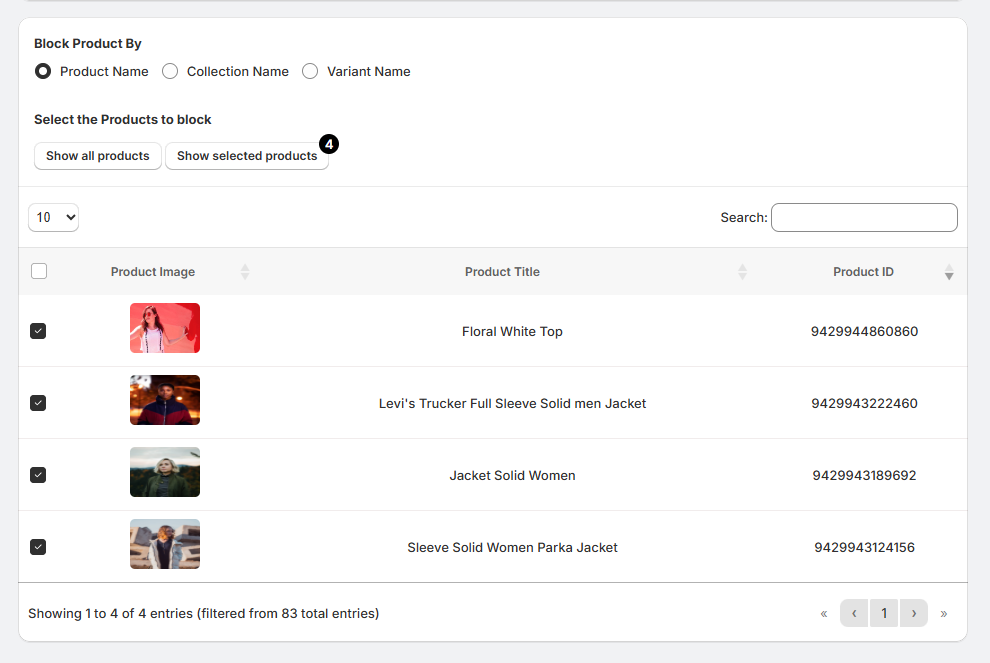
Choose how products should be matched:
- Product Name
- Collection Name
- Variant Name
Then:
- Select the products, collections, or variants you want to block.
- Use the Search box to quickly find items.
- Check the boxes next to the items you want to include in the rule.
You can switch between:
- Show All Products
- Show Selected Products
Step 5: Save the Rule
After completing your configuration:
- Review all settings.
- Click Save in the top.
Your rule is now active (if enabled) and the selected products will be blocked for visitors from the specified countries or states.
Tips:
- Click Sync Data before creating a rule to ensure your latest products and collections are available.
- Give each rule a descriptive name so it's easy to identify later.
- Enable Block Proxy or VPN to prevent users from bypassing your location-based restrictions.
- Use the Search box to quickly locate products in large catalogs.
- Test your rule using a VPN or location simulator to verify it behaves as expected.
- You can edit, disable, or delete rules at any time from the Rules page.