
Follow these simple steps to allow blocked visitors to access your store using a password.
Step 1: Open the Password Protection Settings
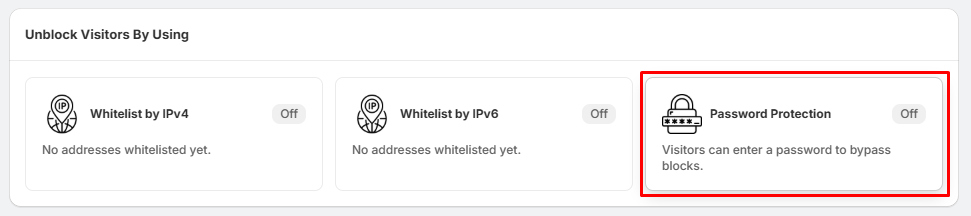
- Go to WhiteList Settings.
- Locate the Password section.
- Click Settings.
This will open the Password Protection Settings page.
Step 2: Configure Password Protection
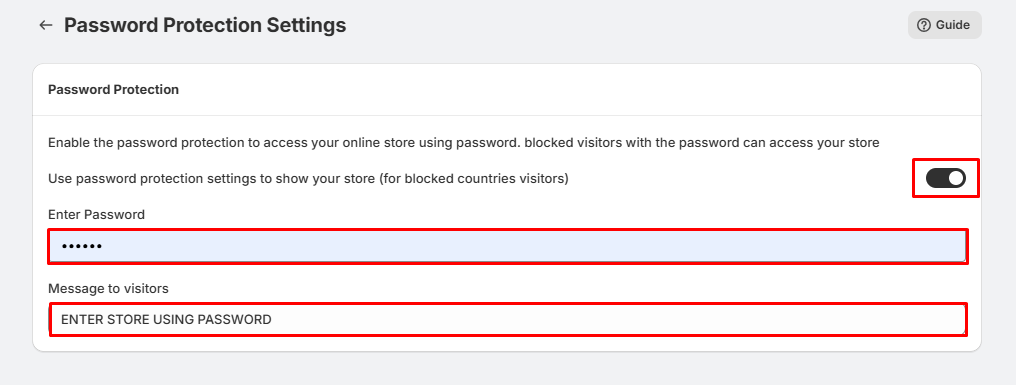
On the Password Protection Settings page:
- Turn ON the Password Protection toggle.
- This enables password-based access for blocked visitors.
After enabling Password Protection:
- Enter the password you want visitors to use in the Enter Password field.
- Enter a custom message in the Message to visitors field.
- Example: ENTER STORE USING PASSWORD
- Click Save to apply the changes.
Step 3: Test Password Protection
After saving the settings:
- Blocked visitors will see the password prompt when they try to access your store.
- Visitors who enter the correct password will be allowed to access the store.
- Visitors who enter an incorrect password will remain blocked.
Tips:
- Use a strong, unique password that is difficult to guess.
- Share the password only with visitors you want to allow access.
- Update the password periodically for better security.
- Customize the visitor message to provide clear instructions.
- Test the password after saving to ensure blocked visitors can access the store using the correct password.