
Follow these simple steps to choose what blocked visitors see when they try to access your store.
Option 1: Display a Custom Blocked Page
Step 1: Open Block Type Settings
- Go to Settings.
- Click Block Type from the left menu.
Step 2: Select Custom Blocked Page
- Under Redirect your blocked visitors to, select Custom Blocked Page.
- Choose your preferred blocked page template from the available options.
- Click Save to apply the changes.
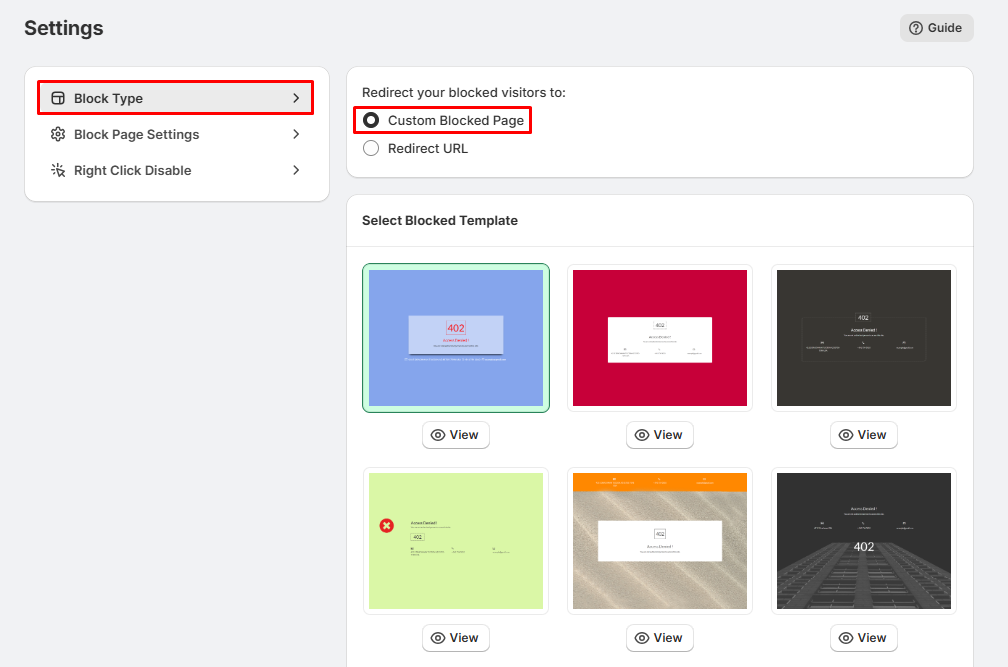
Result:
- Blocked visitors will see the selected custom blocked page whenever they try to access your store.
Option 2: Redirect Visitors to Another URL
Step 1: Open Block Type Settings
- Go to Settings.
- Click Block Type from the left menu.
Step 2: Select Redirect URL
- Under Redirect your blocked visitors to, select Redirect URL.
- Enter the destination URL in the Enter Redirect URL field.
- Example: https://example.com
- Click Save to apply the changes.
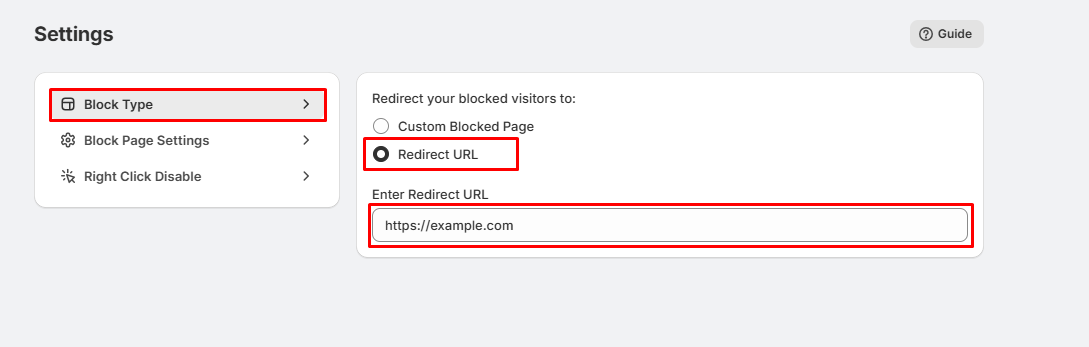
Result:
- Blocked visitors will be automatically redirected to the URL you specified instead of seeing the blocked page.
Tips
- Use Custom Blocked Page if you want visitors to see a branded message explaining why access is restricted.
- Use Redirect URL if you want to send blocked visitors to another page, such as your homepage, a help page, or another website.
- Ensure the redirect URL is valid and starts with https://.
- Test your settings after saving to confirm blocked visitors experience the expected behavior.