
Follow these simple steps to personalize the page visitors see when they are blocked from accessing your store.
Step: Open the Block Page Settings
- Go to Settings.
- Click Block Page Settings from the left menu.
This section allows you to customize the appearance and content of your blocked page.
Tab 1: General Settings
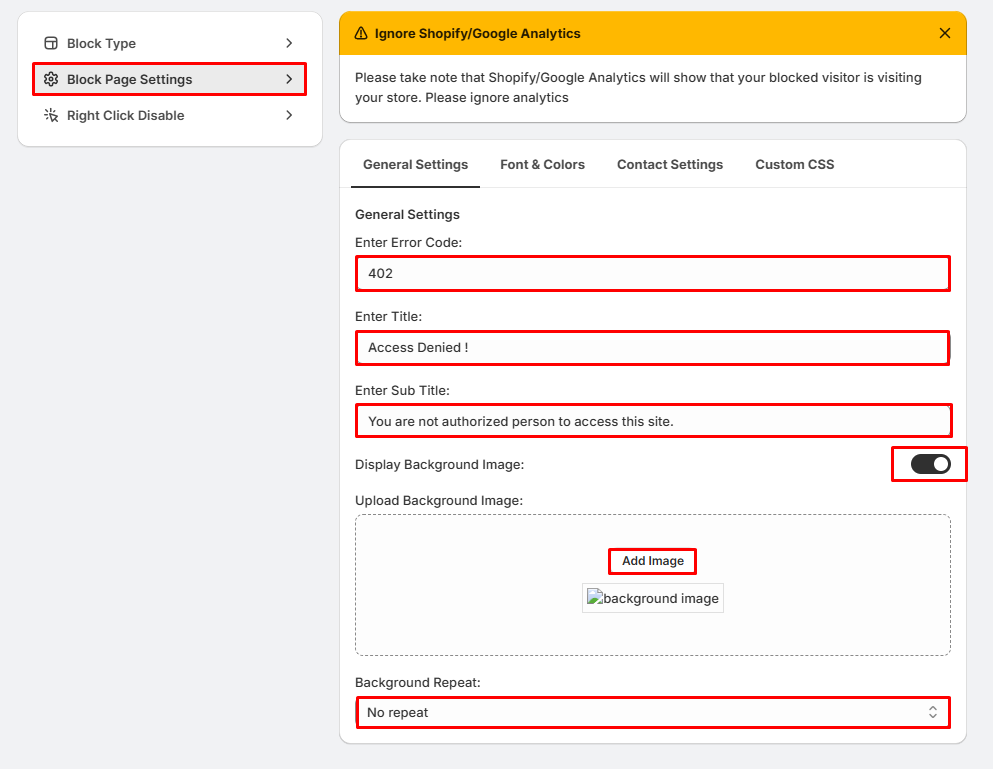
Use the General Settings tab to configure the basic content of your blocked page.
You can customize:
- Error Code – Display a custom error code (e.g., 402, 403, 404).
- Title – Set the main heading displayed to blocked visitors.
- Sub Title – Add a description or explanation below the title.
- Display Background Image – Enable or disable a background image.
- Upload Background Image – Upload your own custom background image.
- Background Repeat – Choose how the background image should repeat (No Repeat, Repeat, etc.).
After making your changes, click Save.
Tab 2: Font & Colors
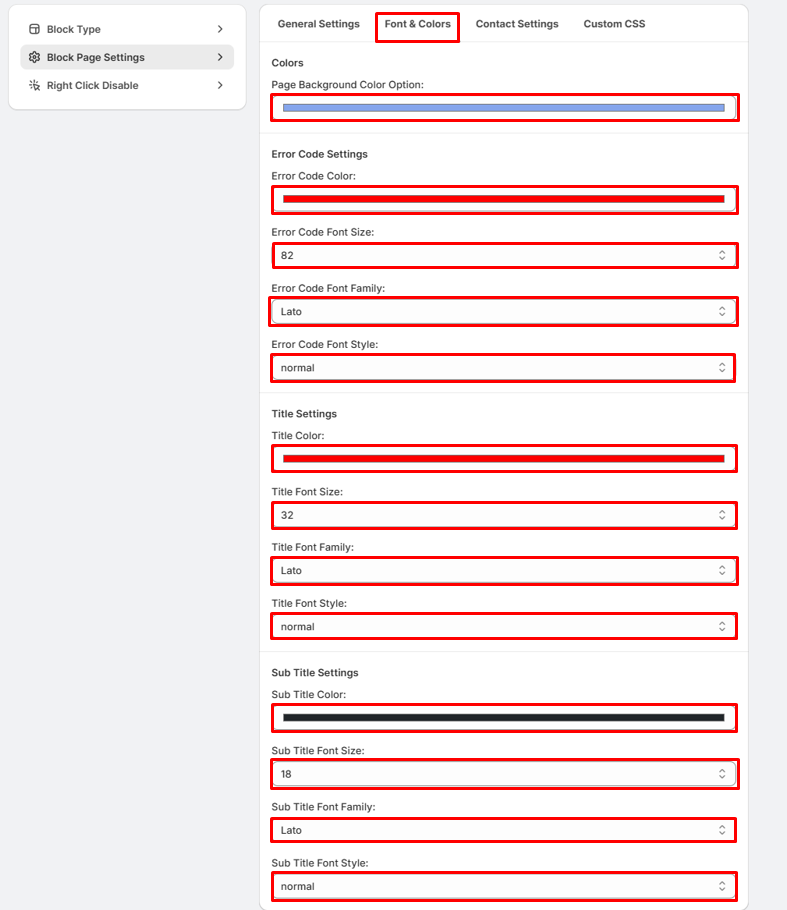
Select the Font & Colors tab to customize the appearance of your blocked page.
Available customization options include:
- Page Background Color
- Error Code Color
- Error Code Font Size
- Error Code Font Family
- Error Code Font Style
- Title Color
- Title Font Size
- Title Font Family
- Title Font Style
- Sub Title Color
- Sub Title Font Size
- Sub Title Font Family
- Sub Title Font Style
Customize these settings to match your store's branding, then click Save.
Tab 3: Contact Settings
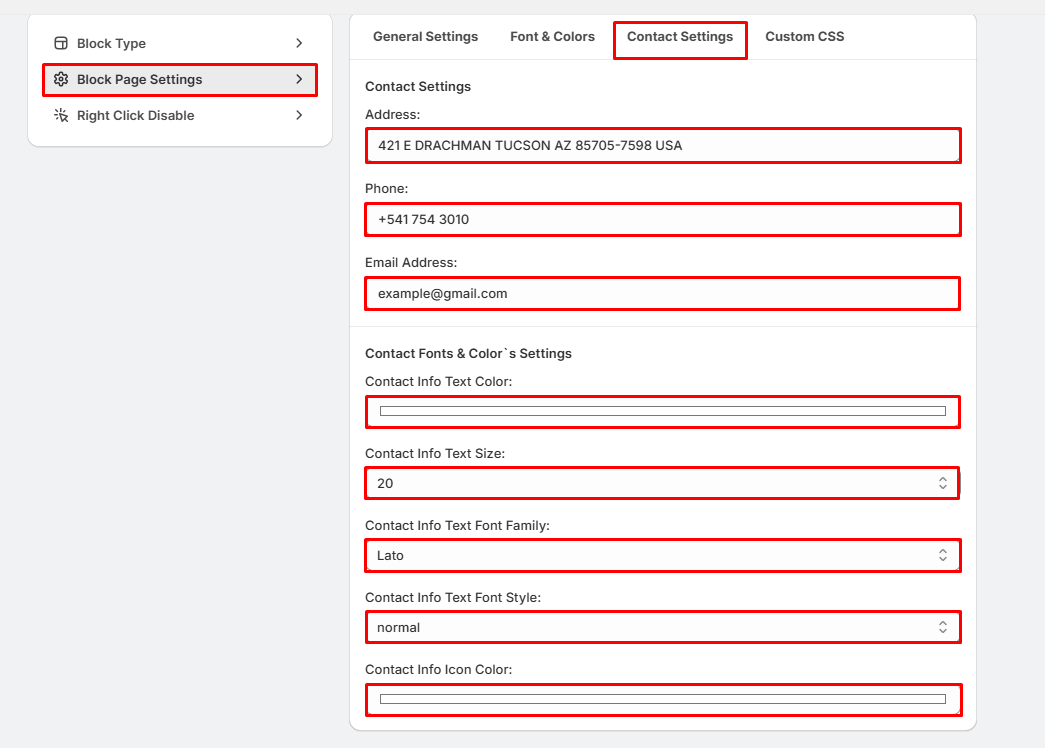
Open the Contact Settings tab to display your contact information on the blocked page.
You can configure:
- Address
- Phone Number
- Email Address
You can also customize:
- Contact Information Text Color
- Contact Information Text Size
- Contact Information Font Family
- Contact Information Font Style
- Contact Information Icon Color
Click Save after updating your contact details.
Tab 4: Custom CSS
Select the Custom CSS tab if you want to apply advanced styling.
- Enter your custom CSS code in the editor.
- Click Save to apply your changes.
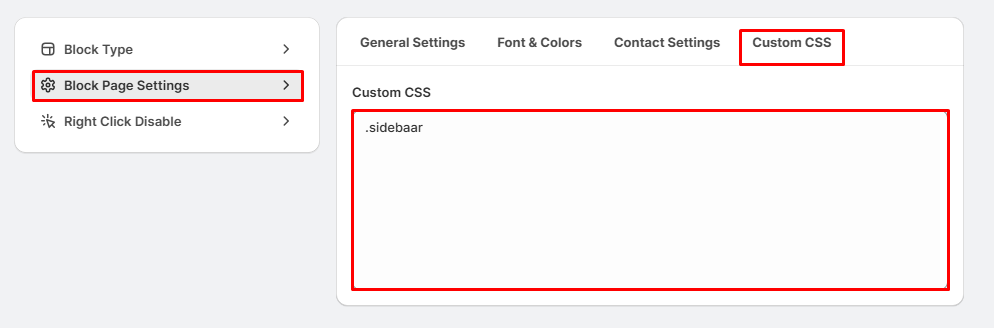
Note: Custom CSS is intended for users familiar with CSS. Incorrect code may affect the appearance of your blocked page.
Tips
- Use a clear error code and message to help visitors understand why access is restricted.
- Add your contact information so visitors can reach you if needed.
- Upload a branded background image for a more professional appearance.
- Match fonts and colors with your store's branding for a consistent look.
- Test the blocked page after saving your changes to ensure everything appears correctly.