
Follow these simple steps to protect your store content by disabling right-click actions and common copy shortcuts.
Step 1: Open Right Click Disable Settings
- Go to Settings.
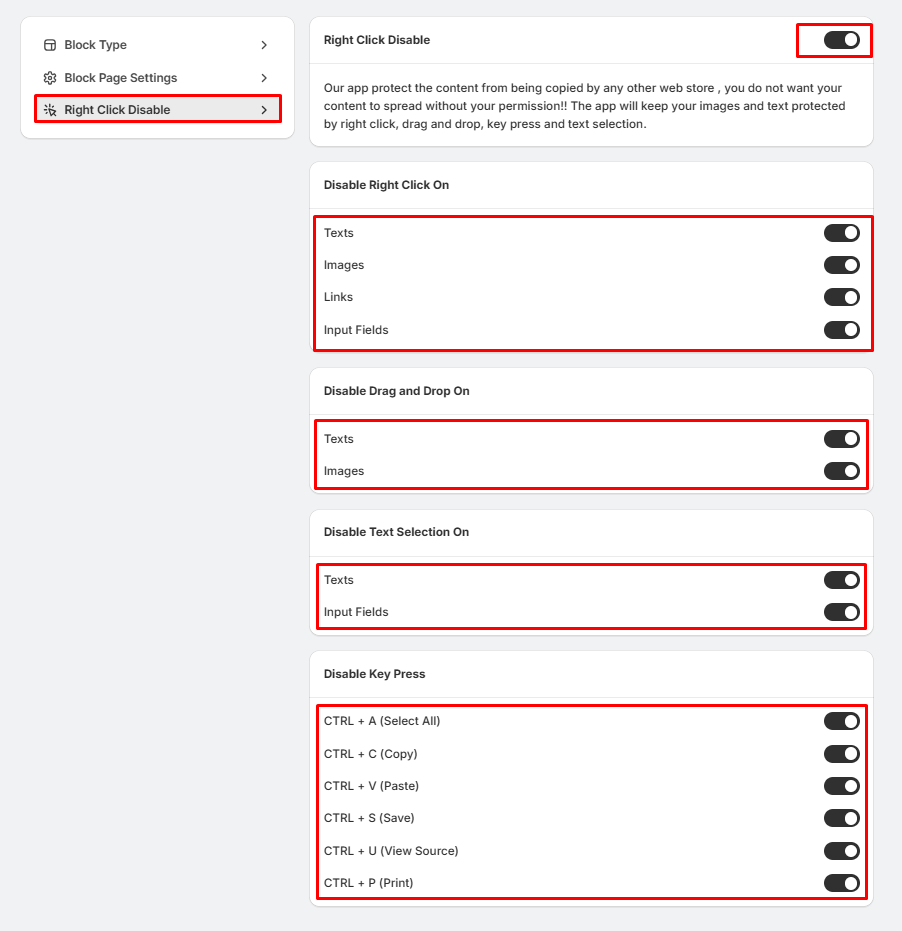
- Click Right Click Disable from the left menu.
This will open the Right Click Disable settings page.
Step 2: Enable Right Click Protection
At the top of the page:
- Turn on the Right Click Disable toggle to enable protection for your store.
Once enabled, additional protection options will become available.
Step 3: Choose What to Protect
Configure the protection settings by enabling or disabling the options you need.
Disable Right Click On
Choose where visitors cannot use the right-click menu:
- Texts
- Images
- Links
- Input Fields
Disable Drag and Drop On
Prevent visitors from dragging content:
- Texts
- Images
Disable Text Selection On
Stop visitors from selecting content:
- Texts
- Input Fields
Disable Key Press Shortcuts
Block commonly used keyboard shortcuts such as:
- CTRL + A (Select All)
- CTRL + C (Copy)
- CTRL + V (Paste)
- CTRL + S (Save)
- CTRL + U (View Source)
- CTRL + P (Print)
Enable only the shortcuts you want to restrict.
Step 4: Save Your Changes
After configuring your preferred protection settings:
- Click Save to apply the changes.
Your selected content protection rules will now be active across your store.
Tips:
- Enable only the protection options you need to avoid affecting the user experience.
- Test your store after saving to ensure the selected restrictions are working correctly.
- Remember that these settings help discourage content copying but cannot guarantee complete protection against advanced users.
- You can update or disable any protection option at any time from the Right Click Disable settings page.