
Follow these simple steps to restrict access to a specific URL in your store for selected countries.
Step 1: Open the Lock URL Section
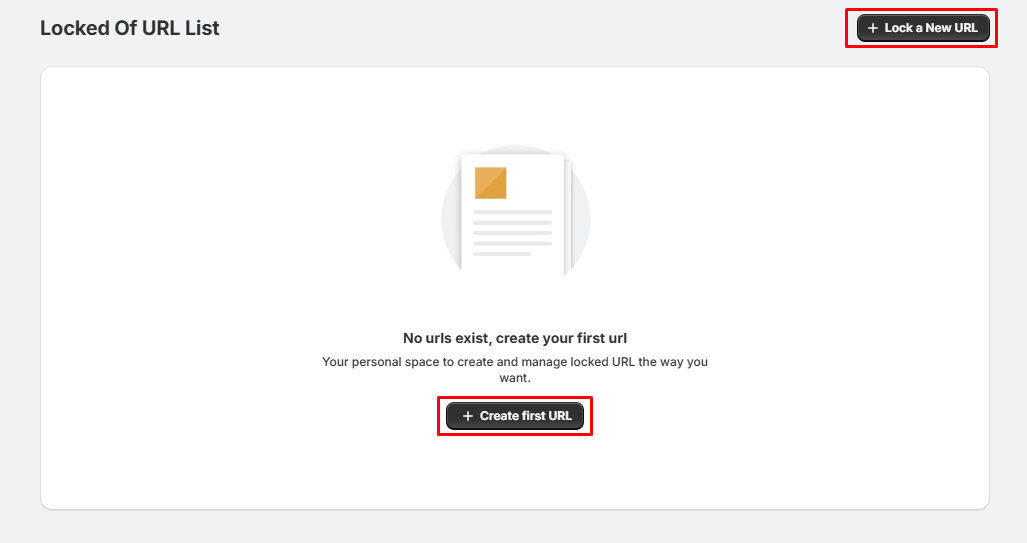
Navigate to Lock URL from the app menu.
You can create a new URL lock in either of these ways:
- Click Lock a New URL in the top-right corner.
- Or click the Create First URL button in the center of the page.
This will open the URL Lock configuration page.
Step 2: Select the Countries to Block
On the URL Lock page:
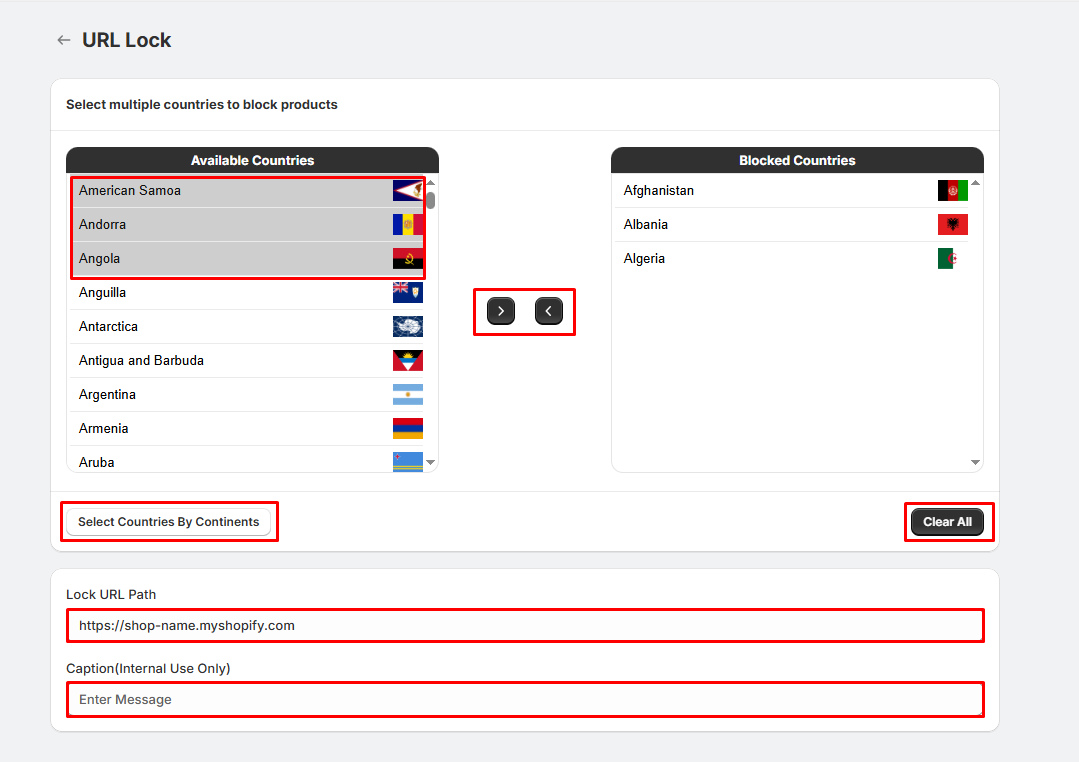
- Select one or more countries from the Available Countries list.
- Click the → button to move them to the Blocked Countries list.
- To remove a country, select it from the Blocked Countries list and click the ← button.
- You can also click Select Countries By Continents to quickly select all countries from a specific continent.
- Click Clear All if you want to remove all selected countries.
Step 3: Enter the URL to Lock
In the Lock URL Path field:
- Enter the URL or page path that you want to restrict.
- Example: https://shop-name.myshopify.com/pages/special-offer
Only visitors from the selected blocked countries will be restricted from accessing this URL.
Step 4: Add an Internal Caption (Optional)
In the Caption (Internal Use Only) field:
- Enter a descriptive name for the rule.
- Example: Block Special Offer Page
This caption is only for your reference and is not visible to store visitors.
Step 5: Save the Rule
After configuring the countries and URL:
- Click Save.
The URL lock will become active, and visitors from the selected countries will no longer be able to access the specified URL.
Tips:
- You can block a URL for one or multiple countries.
- Use Select Countries By Continents to quickly add entire regions.
- The Caption field is for internal management only.
- You can edit or remove the URL lock at any time.
- Test the URL using a VPN or visitors from the selected countries to verify that the rule is working correctly.