
Follow these simple steps to hide or show specific sections of your Shopify store based on your visitors' location.
Step 1: Open the Hide/Show Sections Page
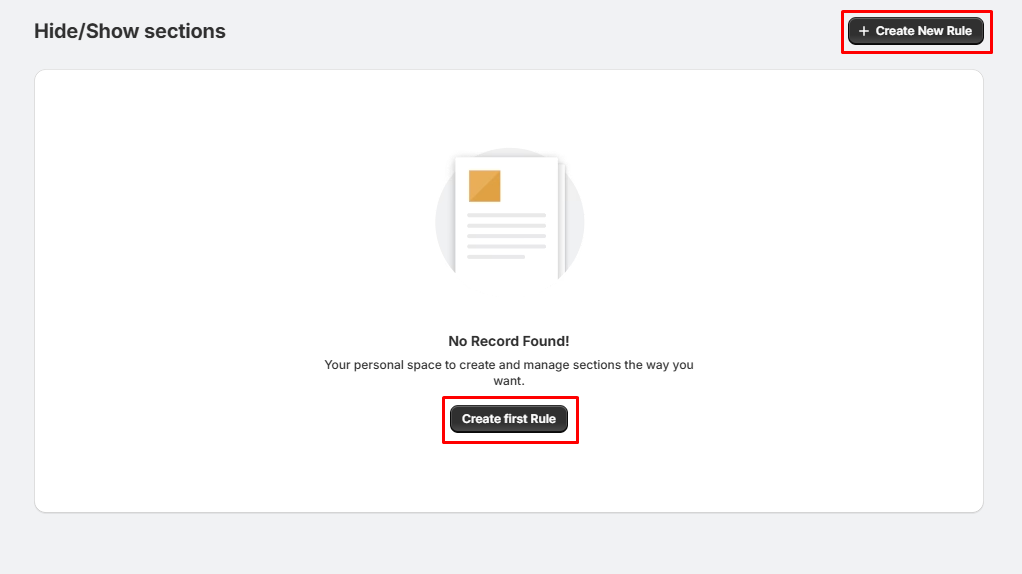
Navigate to Hide/Show Sections from the app menu.
You can create a new rule in either of these ways:
- Click Create New Rule in the top-right corner.
- Or click the Create First Rule button in the center of the page.
This will open the Create Sections Rule page.
Step 2: Configure the Rule
On the Create Sections Rule page:
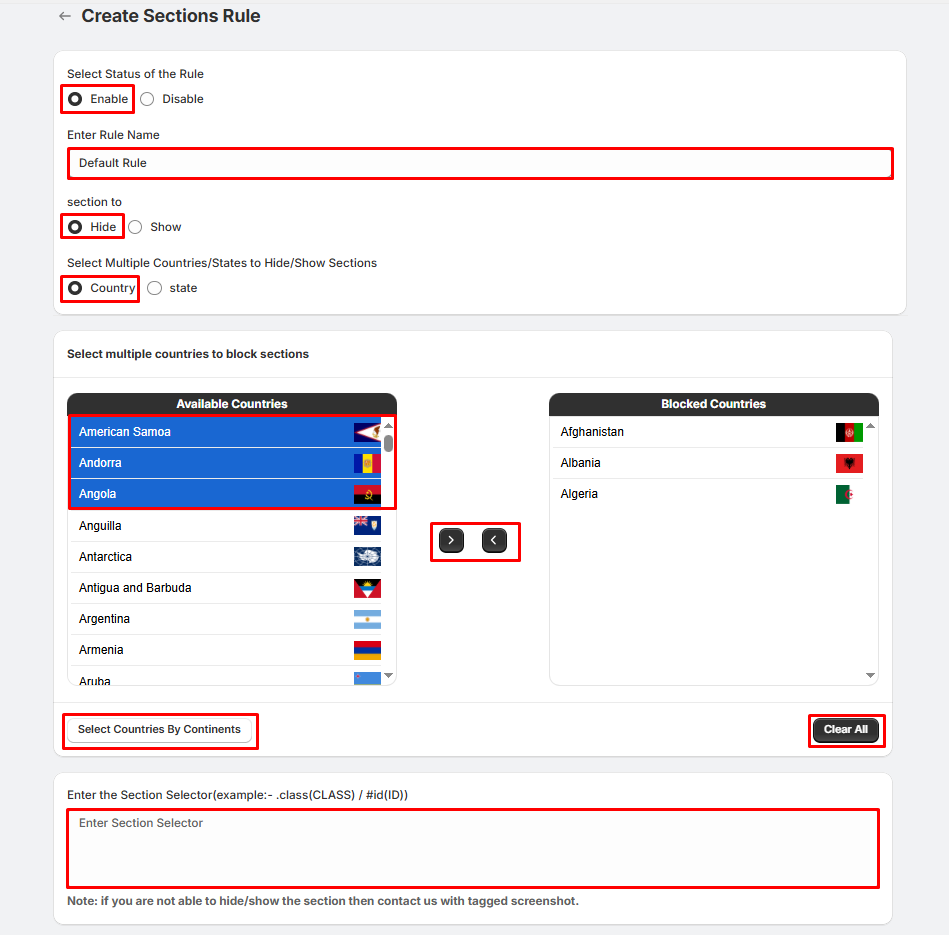
1. Select the Rule Status:
- Enable – Activate the rule immediately.
- Disable – Save the rule without activating it.
2. Enter a Rule Name for your reference.
3. Choose whether you want to:
- Hide the selected section, or
- Show the selected section.
4. Select whether you want the rule to apply by:
- Country, or
- State.
Step 3: Select Countries or States
Choose the locations where the rule should apply.
- Select one or more countries (or states) from the Available Countries/States list.
- Click the → button to move them to the Blocked Countries/States list.
- To remove a location, select it from the Blocked Countries/States list and click the ← button.
- Use Select Countries By Continents to quickly add all countries from a specific continent.
- Click Clear All to remove all selected locations.
Step 4: Enter the Section Selector
In the Section Selector field, enter the CSS selector of the section you want to hide or show.
Supported selector formats include:
1. Class Selector
- Example: .product-grid
2. ID Selector
- Example: #shopify-section-header
The app will use this selector to identify the section that should be hidden or shown for visitors from the selected locations.
Note: If you're unable to identify the correct section selector or the rule isn't working as expected, please contact our support team with a tagged screenshot of the section.
Step 5: Save the Rule
After completing all the settings:
- Click Save.
The rule will become active (if enabled), and the selected section will be hidden or shown for visitors from the specified countries or states.
Tips:
- Give each rule a descriptive name for easier management.
- Verify that the CSS selector is correct before saving.
- Use Country or State targeting depending on your requirements.
- Test the rule using a VPN or visitors from the selected locations to ensure it works as expected.
- You can edit, disable, or delete the rule at any time from the Hide/Show Sections page.