
The Email Settings section allows you to control which automatic emails are sent to customers and store owners during the withdrawal process. You can enable or disable each email notification and customize its content.
Step 1: Open Email Settings
From the Local EU Withdrawal app, navigate to Email Settings
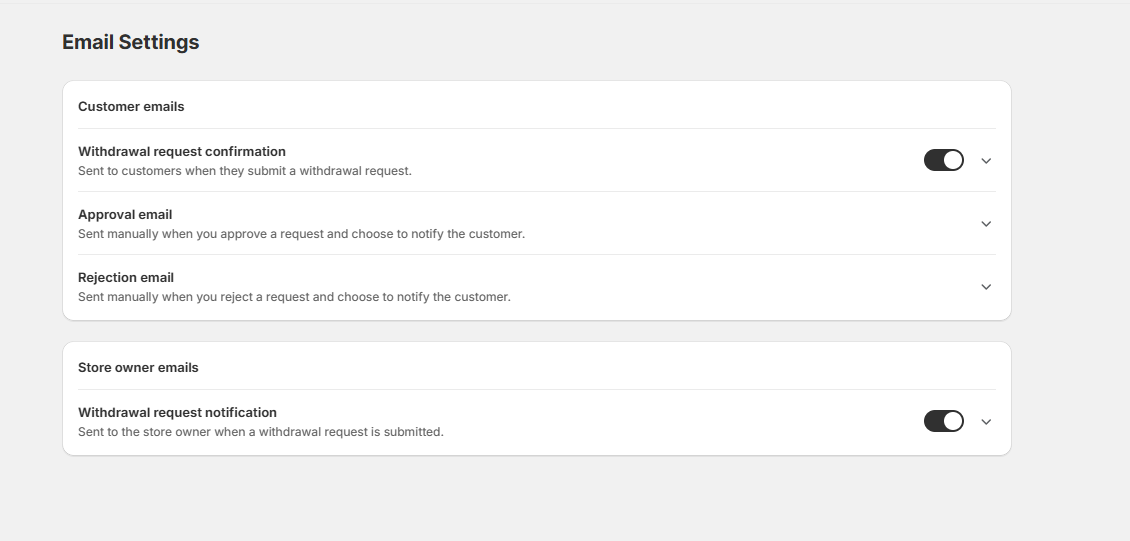
You'll see two email categories:
- Customer Emails
- Store Owner Emails
Step 2: Configure Customer Emails
Customer emails keep your customers informed throughout the withdrawal process.
The available customer emails are:
Withdrawal Request Confirmation
- Automatically sent immediately after a customer submits a withdrawal request.
- This email confirms that the request has been received successfully.
Approval Email
- Sent manually when you approve a withdrawal request and choose Approve & Notify.
- Use this email to inform customers that their withdrawal request has been approved.
Rejection Email
- Sent manually when you reject a withdrawal request and choose Reject & Notify.
- Use this email to explain that the withdrawal request has been declined.
Tip: Click the dropdown arrow beside each email to customize its subject and email content.
Step 3: Configure Store Owner Emails
The app can also notify your store whenever a new withdrawal request is submitted.
Withdrawal Request Notification
- When enabled, the store owner receives an email every time a customer submits a withdrawal request.
- This helps you review and process requests as quickly as possible.
Step 4: Enable or Disable Email Notifications
Each email includes an On/Off toggle.
- ON – The email will be sent automatically when the corresponding event occurs.
- OFF – The email will not be sent.
Simply toggle the switch to enable or disable each notification.
Step 5: Customize Email Templates
Click the dropdown arrow (▼) beside any email notification to expand its settings.
Depending on the email type, you can customize:
- Email subject
- Email content
- Message formatting
- Dynamic placeholders (where available)
After making your changes, save the template.
Tip: Customize your email templates to match your store's branding and communication style.
Tips:
- Keep Withdrawal Request Confirmation enabled so customers know their request has been received.
- Enable Store Owner Notifications to stay informed about new withdrawal requests.
- Review your email templates regularly to ensure they contain accurate information.
- Use Approve & Notify and Reject & Notify to automatically send approval or rejection emails to customers.