
The Voucher Management feature allows you to create coin vouchers that customers can purchase or redeem. Each voucher consists of a Coin value and an optional Gift Coin bonus.
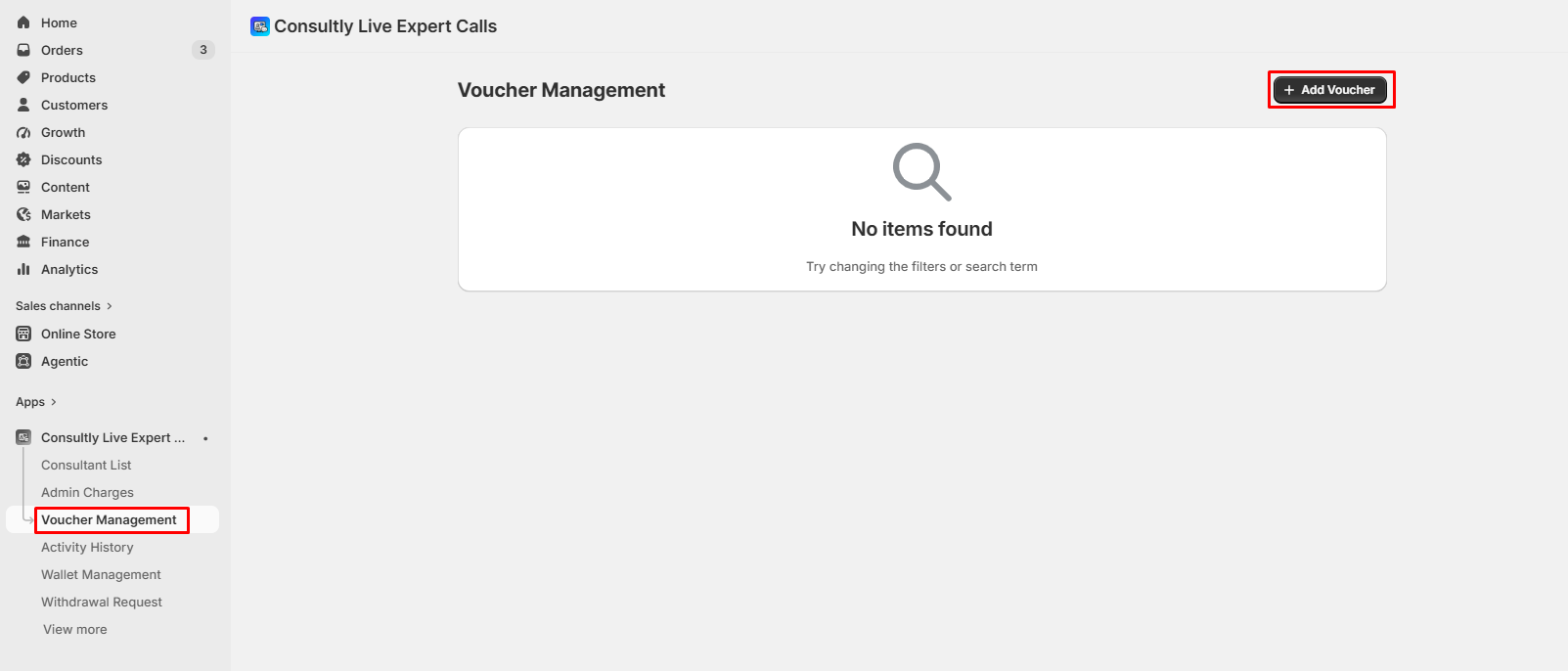
Step 1: Open Voucher Management
- From the Consultly Live Expert Calls dashboard,
- Navigate to Voucher Management from the left sidebar.
- You'll see a list of all available vouchers.
- If no vouchers have been created yet, the page will display No items found.
- To create a new voucher, click the + Add Voucher button in the top-right corner.
Step 2: Enter Voucher Details
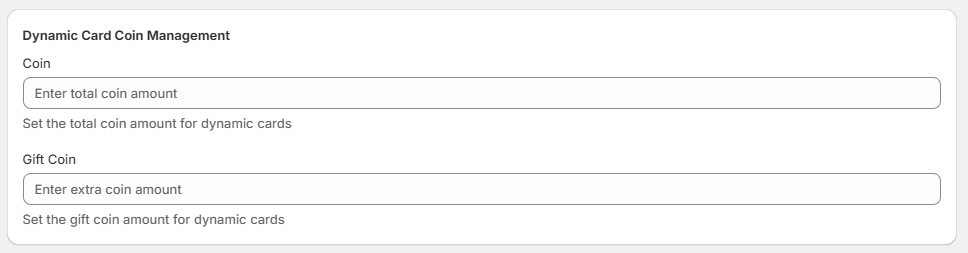
After clicking + Add Voucher, you'll be redirected to the Voucher Management form.
Coin
- Enter the total coin amount that the customer will receive when purchasing the voucher.
- This is the primary coin value of the voucher.
Gift Coin
- Enter the bonus coin amount that will be added to the voucher.
- Leave this value as 0 if you do not want to offer bonus coins.
Step 3: Save the Voucher
After entering the required information:
- Review the Coin amount.
- Review the Gift Coin amount.
- Click the Save button.
The voucher will be created and added to the Voucher Management list.
Example:
| Coin | Gift Coin | Customer Receives |
|-------|------------| ----------------------|
| 100 | 0 | 100 Coins |
| 500 | 50 | 550 Coins |
| 1000 | 200 | 1200 Coins |
Tips:
- Coin is the base value of the voucher.
- Gift Coin is an additional bonus provided to the customer.
- Gift Coins are automatically added to the customer's wallet along with the purchased coins.
- You can create multiple vouchers with different coin and bonus combinations.