
BlockX Country Blocker allows you to block visitors based on their Internet Service Provider (ISP) or Autonomous System Number (ASN). This can help prevent traffic from specific internet providers or networks from accessing your store.
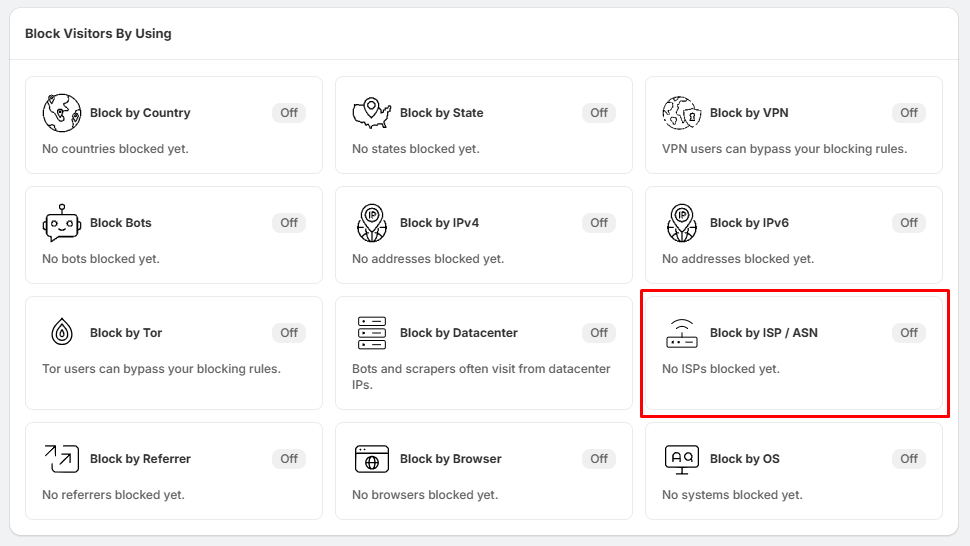
Step 1: Open Block by ISP / ASN
- Go to Block Settings.
- Locate the Block by ISP / ASN section.
- Click Block by ISP / ASN.
Step 2: Enable ISP / ASN Blocking
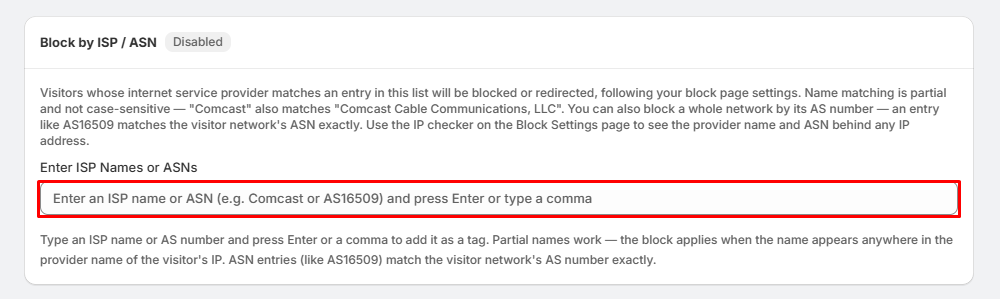
- On the Block by ISP / ASN page, enable the feature if it is currently disabled.
- Once enabled, you can add ISP names or ASN numbers to your blocked list.
Step 3: Enter an ISP Name or ASN
- Under Enter ISP Names or ASNs, enter the ISP name or ASN you want to block.
- For example: Comcast
- Or enter an ASN: AS16509
- You can press Enter after each entry or use a comma to add multiple entries.
Step 4: Understand ISP and ASN Matching
- When blocking an ISP name, BlockX uses partial and case-insensitive matching.
- For example, entering: Comcast
- can match a provider name such as: Comcast Cable Communications, LLC
- For ASN numbers, the match is exact. For example:AS16509
- will match the visitor's network ASN only when the ASN is exactly AS16509.
Step 5: Save and Apply the Rule
- After entering the ISP name or ASN, press Enter or add it as a tag.
- The ISP or ASN will be added to your blocked list.
- Visitors whose ISP or ASN matches a blocked entry will be blocked or redirected according to your configured block-page settings.
Tips:
- Use an ISP name when you want to block traffic from a specific provider.
- Use an ASN when you want to target a specific network with an exact match.
- You can add multiple ISP names or ASNs to the blocked list.
- ISP name matching is partial and case-insensitive.
- ASN matching requires an exact match.
- If you're unsure which ISP or ASN belongs to an IP address, use the IP checker in Block Settings to identify the provider and ASN.
- Test your blocking rule after adding it to make sure it works as expected