
BlockX Country Blocker allows you to block visitors who arrive at your store from specific websites. This can be useful for preventing unwanted referral traffic from particular domains.
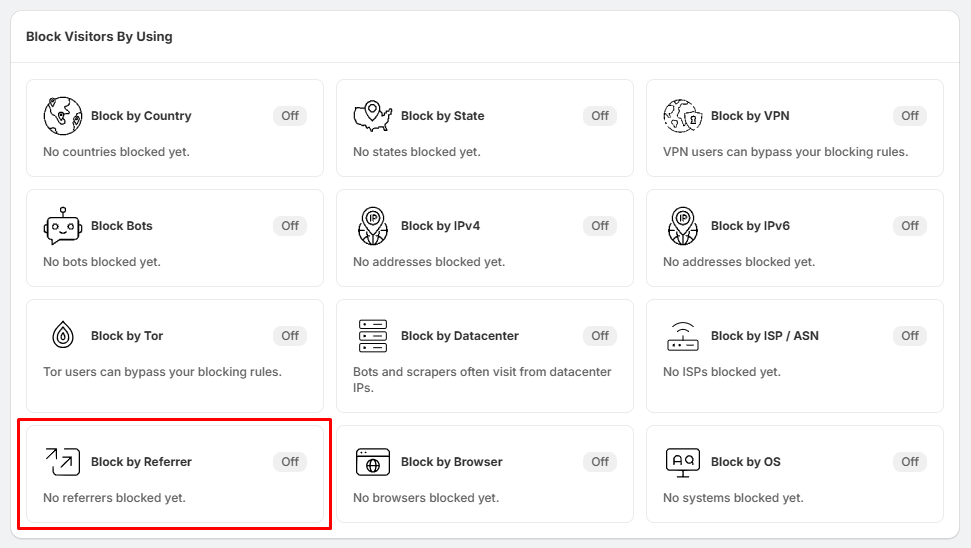
Step 1: Open Block by Referrer
- Go to Block Settings.
- Locate the Block by Referrer section.
- Click Block by Referrer.
Step 2: Enable Referrer Blocking
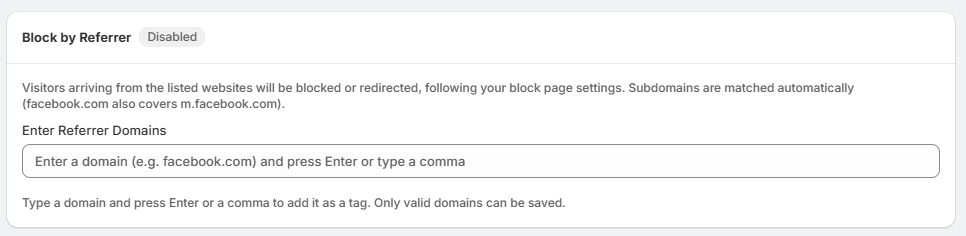
- On the Block by Referrer page, enable the feature if it is currently disabled.
- Once enabled, you can add the websites or domains you want to block.
Step 3: Enter a Referrer Domain
- Under Enter Referrer Domains, enter the domain you want to block.
- For example: example.com
- Then press Enter or use a comma to add the domain.
Step 4: Add Multiple Domains
- You can add multiple domains to your blocked list.
- For example: example.com
- Each domain will be added as a tag after pressing Enter or entering a comma.
Step 5: Understand Domain Matching
- BlockX automatically matches subdomains of the domain you enter.
- For example, if you block: example.com
- the rule will also cover: m.example.com
- This means you only need to enter the main domain rather than adding each subdomain separately.
Step 6: Save the Rule
- After entering the domain, make sure it is added to the list.
- Only valid domains can be saved.
- Visitors arriving from a blocked referrer will then be blocked or redirected according to your configured block-page settings.
Tips:
- Enter the domain only, such as example.com.
- You can add multiple referrer domains.
- Subdomains are matched automatically.
- Only valid domains can be saved.
- Test the rule after adding a domain to make sure it works as expected.
- Review your blocked referrers regularly and remove any domains you no longer want to block.