
The Allowlist feature lets you add trusted customers who should never be blocked, even if they match another blocking rule.
Step 1: Open Allowlist
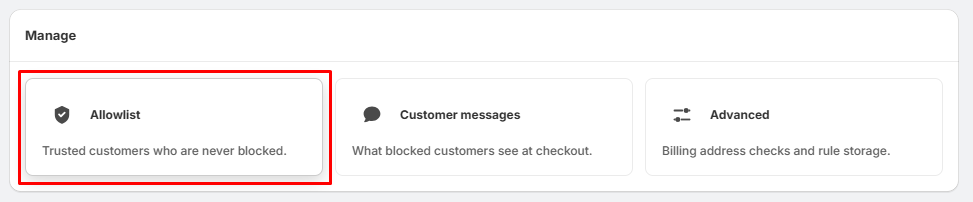
- On the Checkout Filter page, scroll to the Manage section.
- Click Allowlist — this is where you can add trusted customers.
Step 2: Allow a Customer by Name
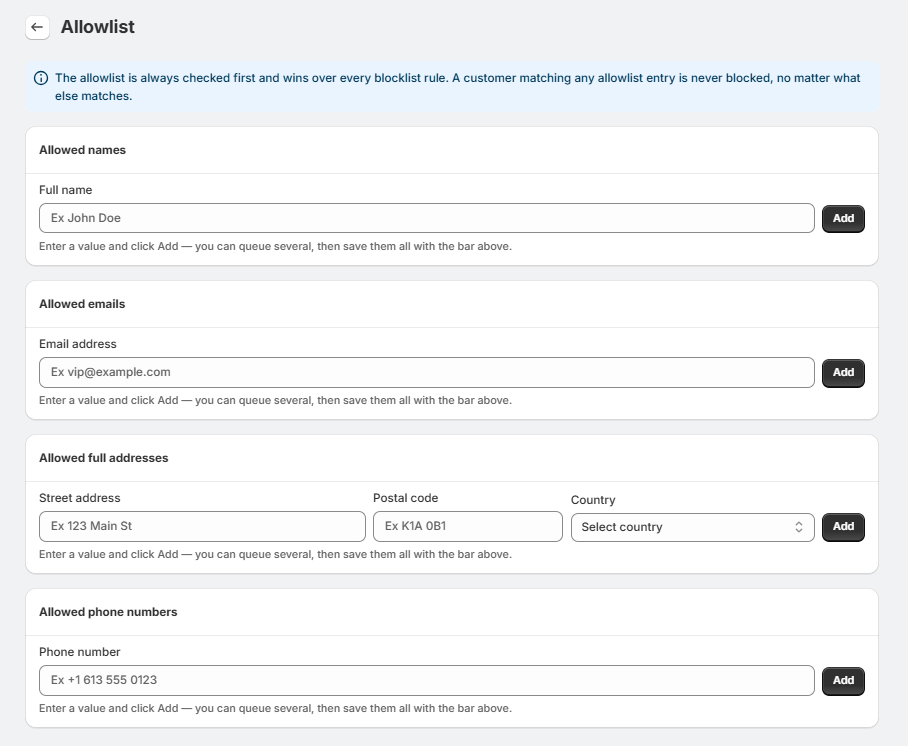
- Enter the customer's full name.
- Click Add.
- Repeat to add multiple names.
Step 3: Allow a Customer by Email
- Enter the customer's email address.
- Click Add.
- Add additional email addresses if required.
Step 4: Allow a Customer by Address
- Enter the Street address.
- Enter the Postal code.
- Select the Country.
- Click Add.
Step 5: Allow a Customer by Phone Number
- Enter the customer's phone number.
- Click Add.
- Add additional numbers if required.
- Save the changes.
Tips:
- The Allowlist always takes priority over blocklist rules. If a customer matches any allowlist entry, they will not be blocked, regardless of other blocking conditions.